




20
August
2024

How to register a Telegram bot in BotFather: Step-by-step instructions
In the age of digitalization, Telegram bots are becoming an important tool for business and customer interaction. However, the process of building and customizing them can be complex and time-consuming. From choosing the right APIs and working with tokens to setting up servers and security — each step requires technical expertise. With years of experience in developing and integrating Telegram bots, the Mmix team can save you from these complexities. Instead of diving into technical details, you can entrust everything to us. But if you decide to do it yourself, here's a step-by-step guide:
STEP 0: WE CAN BUILD A BOT FOR YOU
- We set up the bot for you ourselves
- We customize it for you
- Transfer it to your Telegram account
Step 1: Log in to Telegram and search for BotFather
- Open Telegram on your device (it can be the mobile app, desktop version, or web client).
- In the search bar, type BotFather and select the bot with the verification checkbox (blue shield icon). This is the official tool for creating and managing Telegram bots.

Step 2: Start BotFather
- Click the «Start» button in a chat with BotFather.
- After that, BotFather will offer you a list of commands you can use to control the bots.

Step 3: Create a new bot
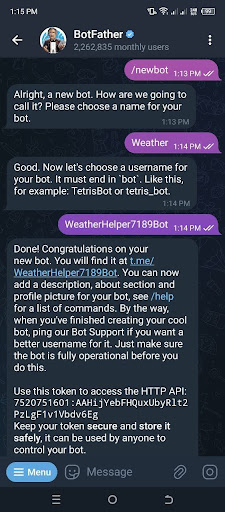
- Enter the command /newbot and submit it.
- BotFather will ask you to come up with a name for your bot. The name can be anything and will be displayed in your bot's profile, so try to make it clear and relevant to the bot's purpose.
- After you enter a name, BotFather will ask you to come up with a uniqueusername for your bot. The username must end in bot. For example, if you are creating a bot for weather, you might choose the name WeatherHelperBot. If the chosen username is busy, try adding numbers or additional characters to it.
Step 4: Obtain an API token
- If the username has been successfully registered, BotFather will send you a message with an API token. This is a unique key that you will need to interact with your bot via Telegram API.
- Save this token in a safe place. It should not be shared with third parties, as it can be used to gain access to your bot's management.
When you have been verified and received the key, you can give it to us for further customization and integration of the bot with the necessary services and systems. We will take care of its proper configuration, connection to the server and smooth operation to ensure that your bot performs all necessary functions and meets your requirements.
Step 5: Additional settings (optional)
- Bot description: To set a description, use the /setdescription command and then select your bot from the list. After that, submit the text of the description. It will be displayed in your bot's profile.
- Bot Commands: You can set standard commands for your bot using /setcommands. For example, commands can include /start, /help, and any other functions the bot will perform.
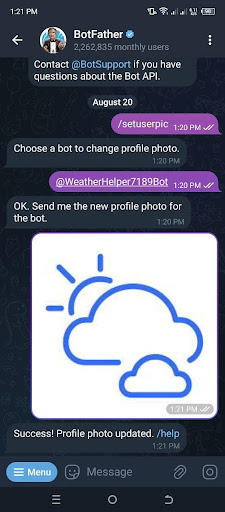
- Profile Picture: You can also set a profile picture for your bot using the /setuserpic command.
Step 6: How to find the bot you created
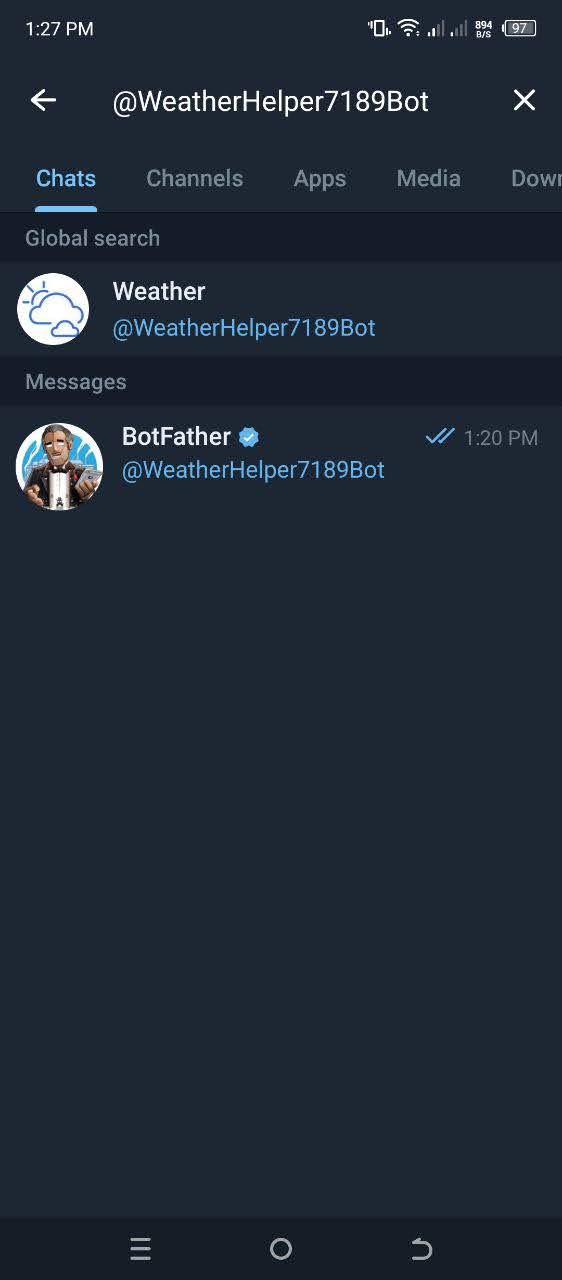
- In the search bar, type @username of your bot and click on it.
If you want to avoid all the technicalities, just entrust the process of bot creation and customization to us. Mmix, a professional in their field, will make sure your bot works flawlessly so you can focus on your business.
 DUNS Number: 68-606-2061
 NCAGE Number: A3G3J






 "INNOVA CONSULTING GROUP"


Comments
Write comment