




13
September
2024
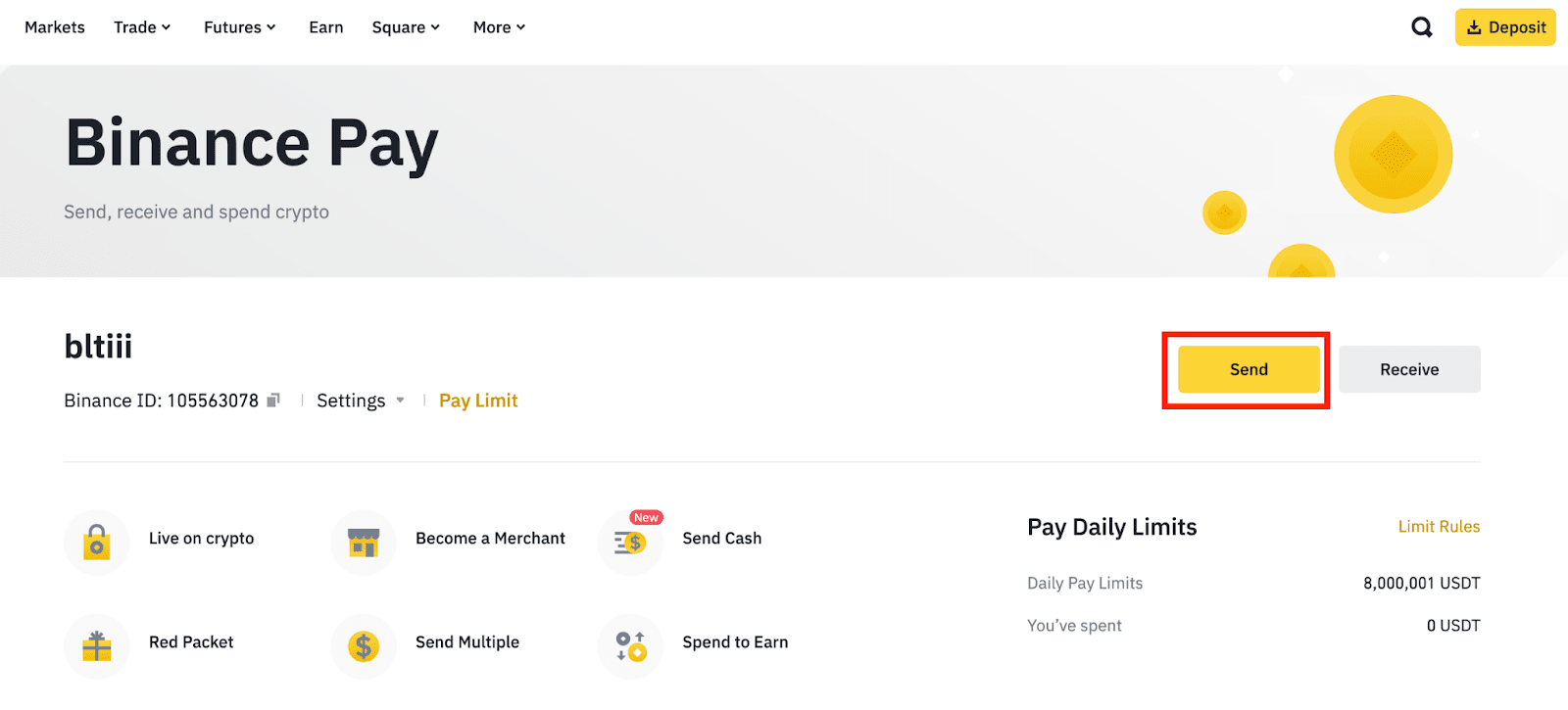
How to unlock Binance Pay to connect to a chatbot or other service: Step-by-step instructions
Integrating Binance Pay with a chatbot or other service — is a convenient way to automate the payment process and simplify your cryptocurrency handling. Follow the step-by-step instructions below to quickly set up the Binance Pay API and use it in your projects.
Step 1: Open the Binance Pay Control Panel
Go to the Binance Pay Developer Panel: https://merchant.binance.com/en/dashboard/developers. Here you will be able to create the necessary API keys to connect your service.
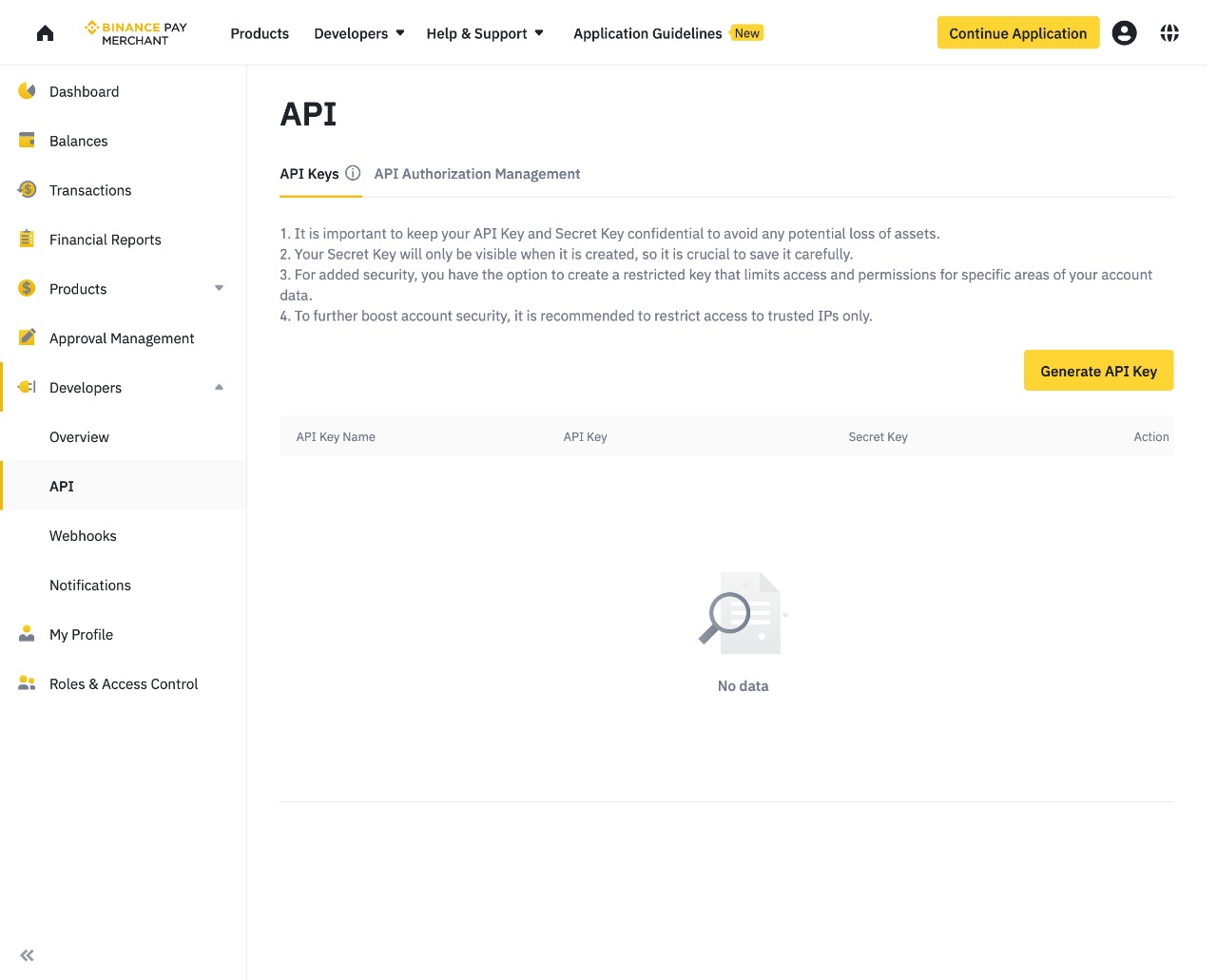
Step 2: Creating an API Key
On the developer panel, click “Generate API Key” to create a new API key for your chatbot or service.
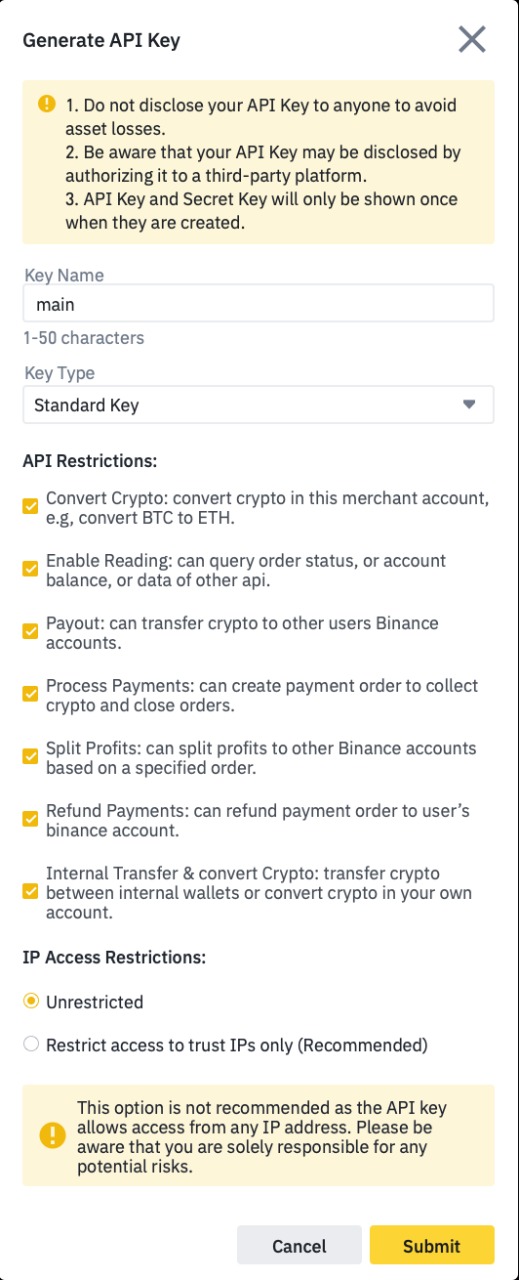
Step 3: Customize the key and permissions
Enter any name for your API key for easy identification in the future. Then customize the access rights for the key depending on what actions your service will perform. After that, click “Submit”.
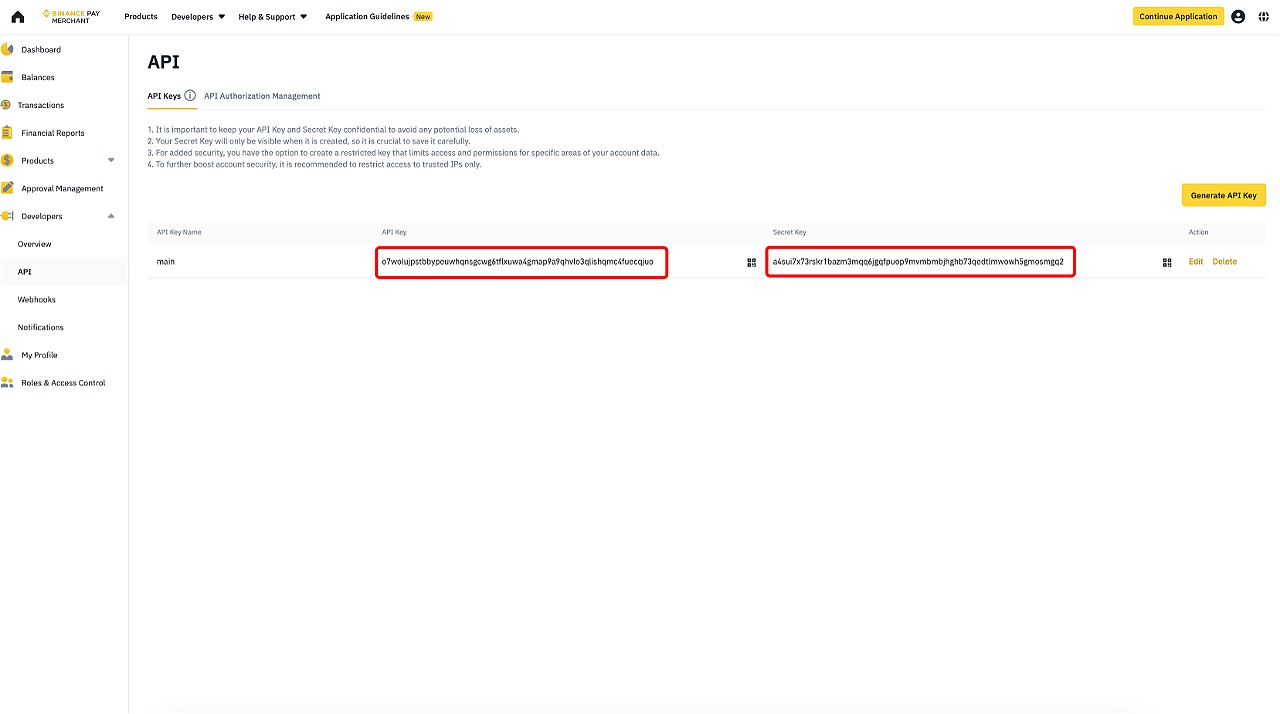
Step 4: Copying Keys
After successfully creating your API key, you will see two fields: “API Key” and “Secret Key”. Copy both keys to a safe place — you will need them for integration with the service or chatbot.
Step 5. Transfer keys to the service
To connect Binance Pay to your chosen service or chatbot, you will need to transfer two keys:
- API Key: your generated key (e.g. o7wolujpstbbypeuwhqnsgcwg6tflxuwa4gmap9a9qhvlo3qlishqmc4fuecqjuo)
- Secret Key:Secret Key (for example, a4sui7x73rskr1bazm3mqqq6jgqfpuop9mvmbmbjhghb73qedtlmwowh5gmosmgq2)
Make sure that keys are only transmitted to secure channels to prevent leakage or unauthorized use.
After that, your service will be successfully connected to Binance Pay and ready to accept cryptocurrency payments!
 DUNS Number: 68-606-2061
 NCAGE Number: A3G3J






 "INNOVA CONSULTING GROUP"


Comments
Write comment