




29
June
2024

How to add Google Tag Manager code to WordPress
Manual addition
1.Go to the admin panel of your site.
2.Go to "Appearance" -> "File Editor".
3.Open the header.php file.
4.Paste the first part of the GTM code directly after the <head> tag.
5.Open the footer.php file.
6.Insert the second part of the GTM code just before the closing </body> tag.
7.Save the changes to the files.
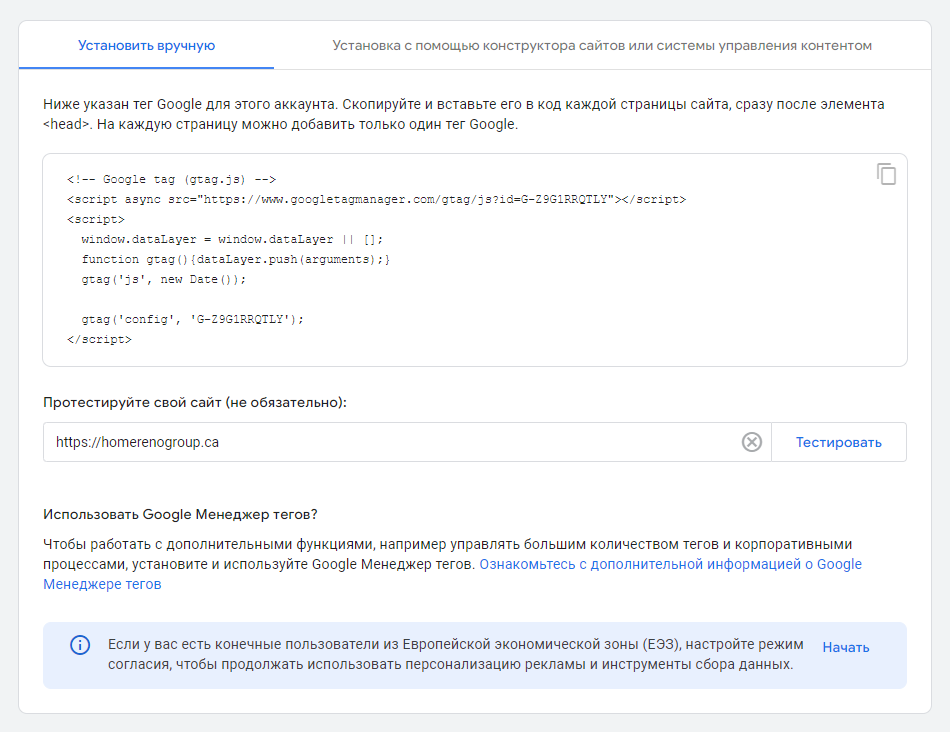
Using the "Header and Footer" plugin
The easiest way to add GTM code to a site on WordPress is to use the "Header and Footer" plugin. To do this, follow the steps below:
1.Go to the admin panel of your site.
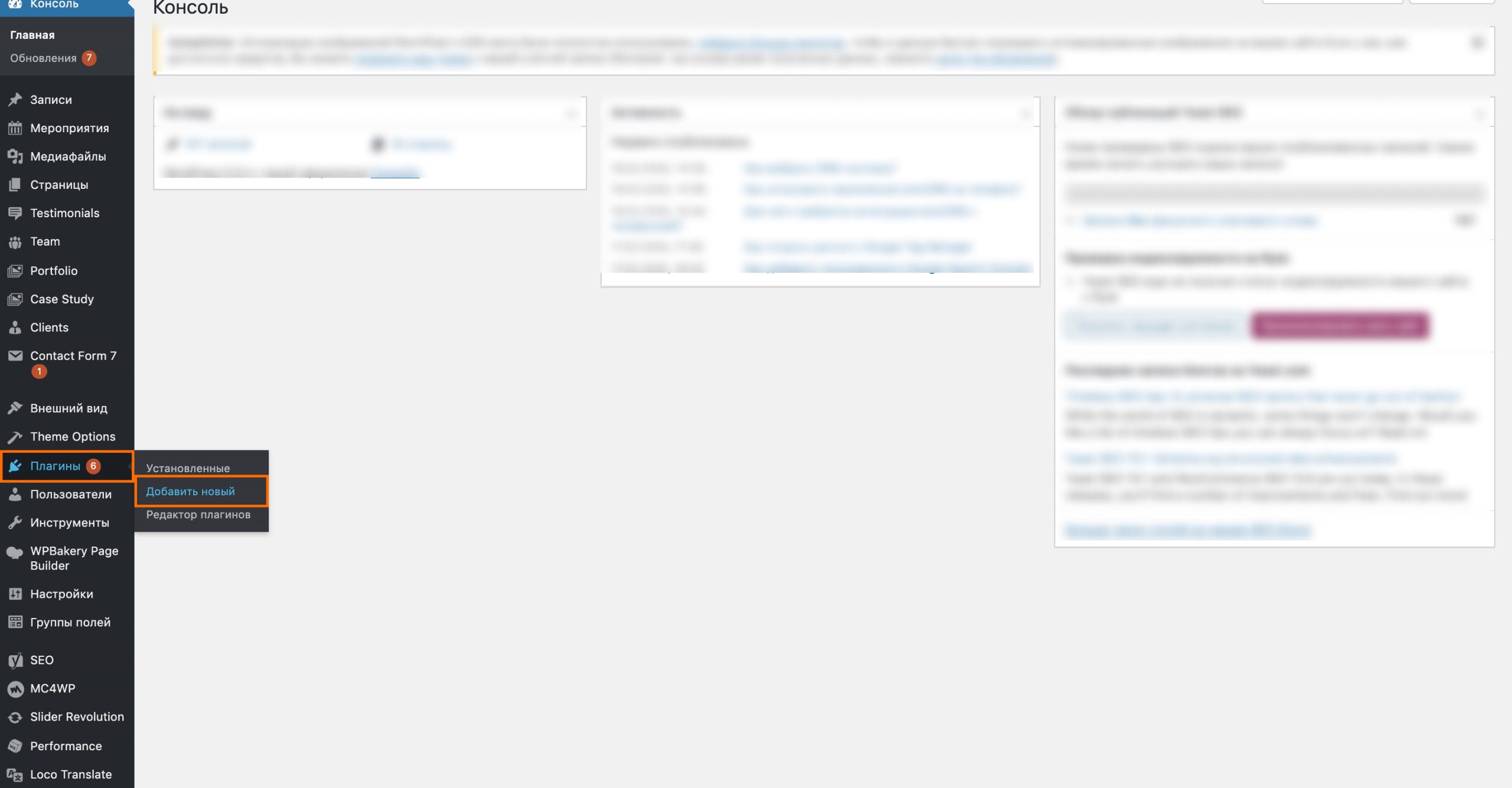
2.In the menu on the left, click on the "Plugins" tab and select "Add New".
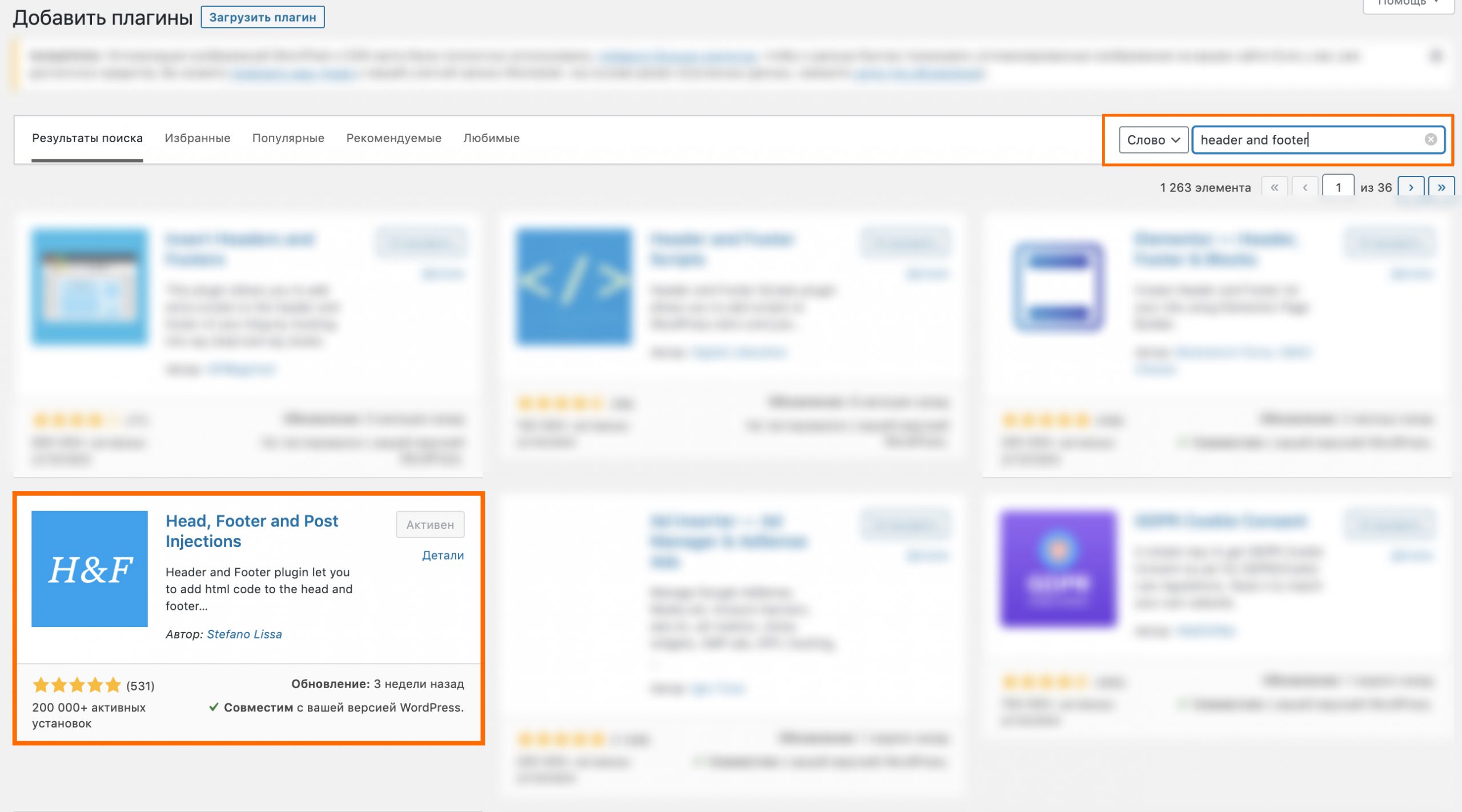
3.Type "Header and Footer" in the search bar, find the plugin called "Head, Footer and Post Injections" and install it.
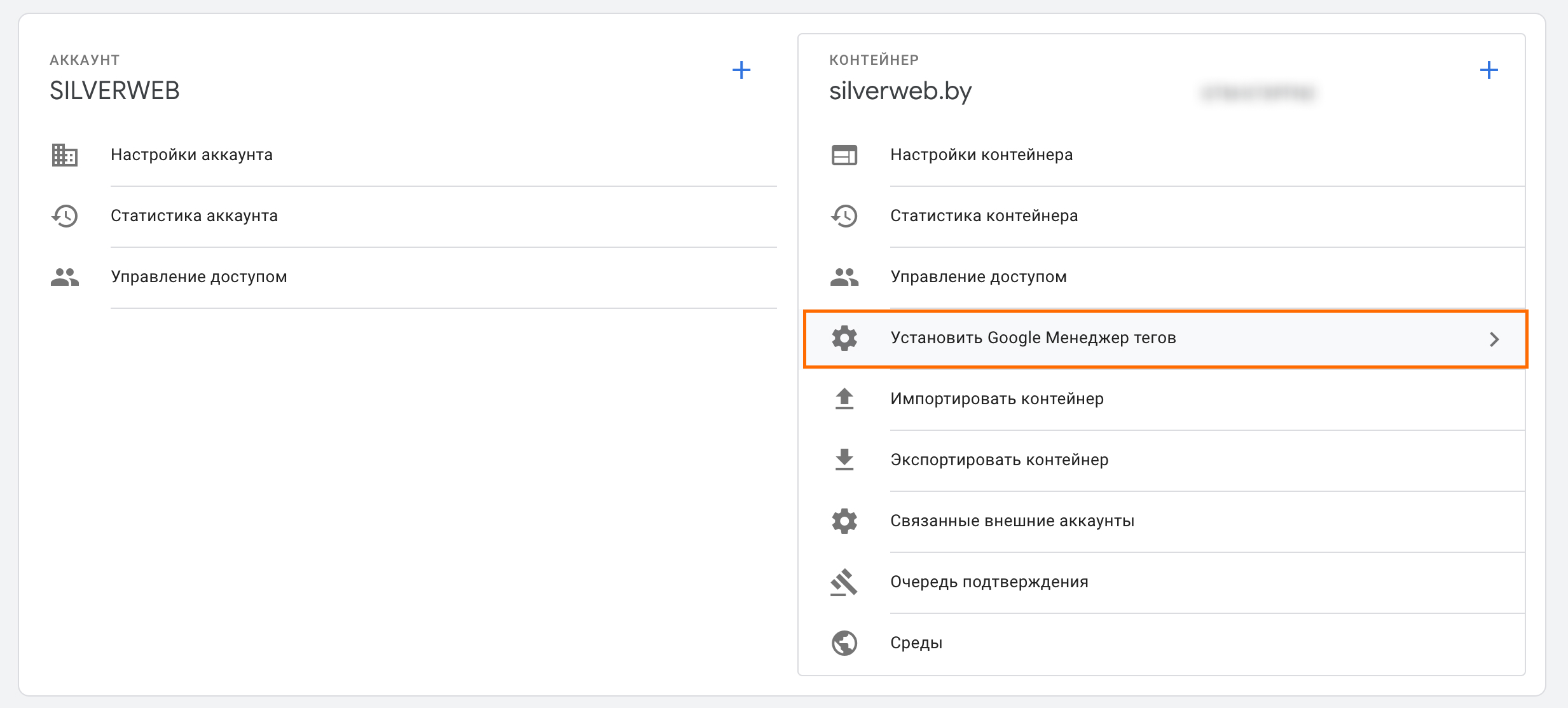
4.Copy the GTM code. To do this, go to the GTM website (tagmanager.google.com), click on the gear icon on the right.

5.Go to the "Install Google Tag Manager" tab and copy the displayed code.

6.Go back to the admin panel of your site. In the "Settings" section, open the installed plugin and paste the first part of the copied code into the top block of the plugin.
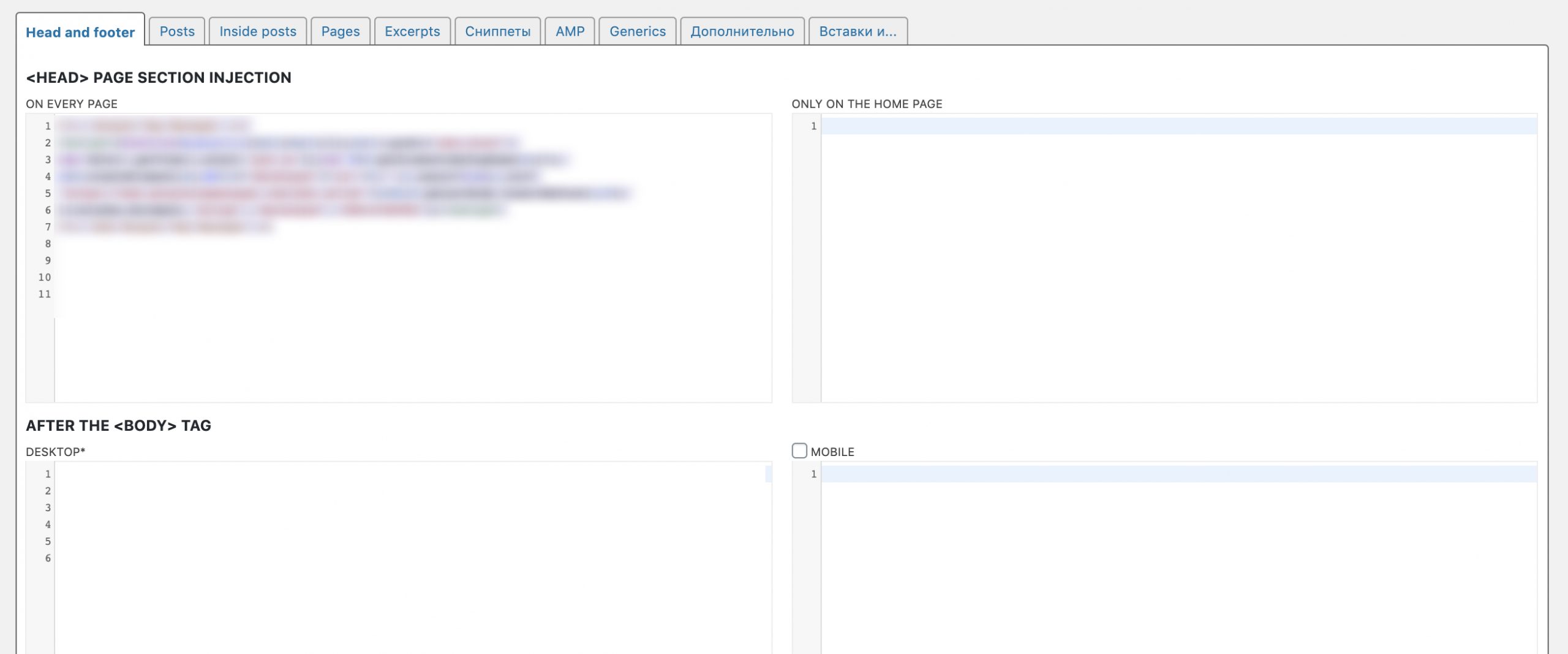
7.Copy the second part of the GTM code and paste it into the second block of the plugin.

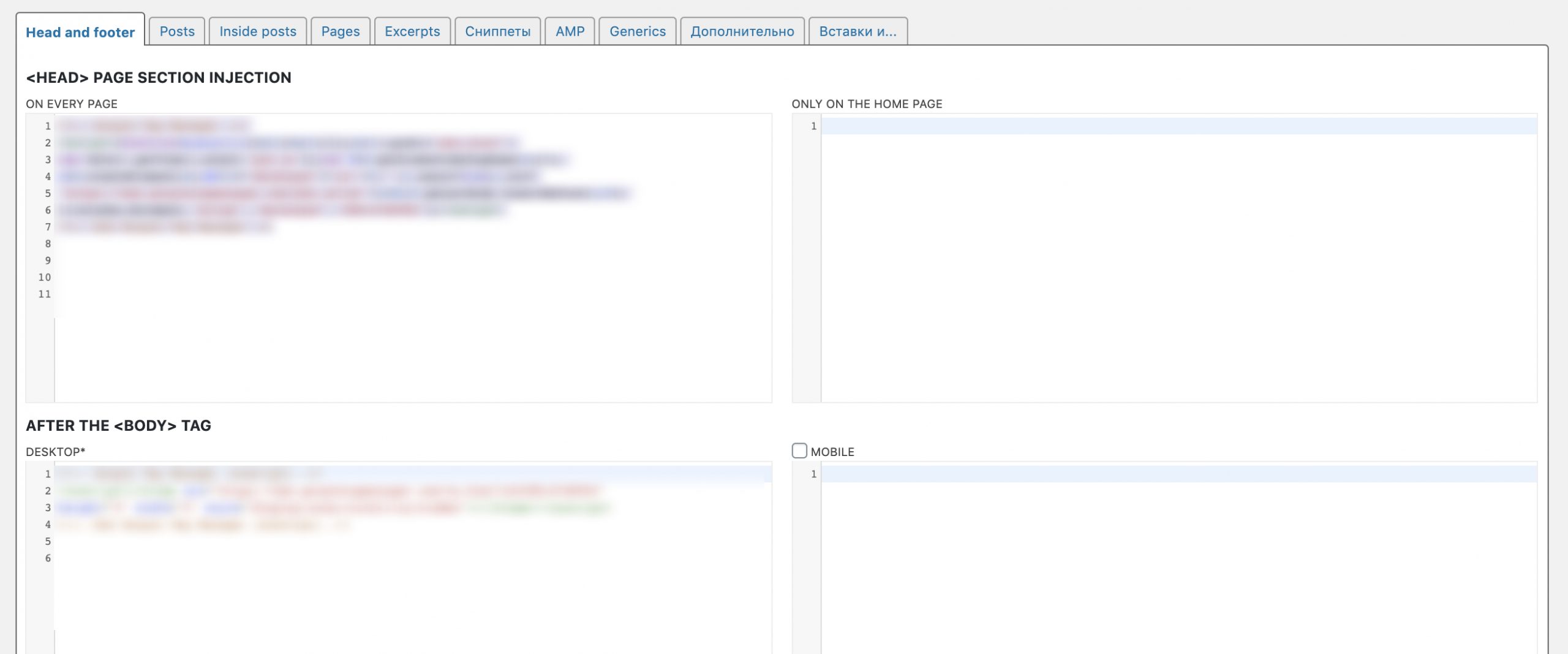
8.Save the changes made in the plugin. Done!
 DUNS Number: 68-606-2061
 NCAGE Number: A3G3J






 "INNOVA CONSULTING GROUP"


Comments
Write comment