



How to connect Google Analytics, Google Tag Manager and Google Search Console to your site

19
November
2024
To connect all three tools, create a GA4 property with a web data stream, install it on the site through Google Tag Manager, verify the site in Google Search Console and link Search Console to GA4 in Admin → Product links.
This guide walks through each step as of 2026, with screenshots of each screen, checks and the mistakes we see most often when we audit client sites.
In short
- Google Analytics 4 (GA4) shows what visitors do on the site. Universal Analytics stopped processing data on 1 July 2023 (UA 360 properties on 1 July 2024), so every new setup is GA4.
- Google Tag Manager (GTM) is the container that loads GA4 and other tags without editing site code each time.
- Google Search Console (GSC) shows how the site appears in Google Search: queries, clicks, positions, indexing errors.
- After linking GSC and GA4 you see search queries and landing pages next to engagement and conversions in one report.
- Setup takes about an hour; Search Console data needs a few days to appear.
Which tool does what
- GA4: sessions, sources, events, conversions (key events), e-commerce revenue.
- GTM: tags, triggers and variables. One container can hold GA4, Google Ads conversion tracking, Meta Pixel, TikTok Pixel and others.
- Search Console: performance in Google Search, page indexing, Core Web Vitals, sitemaps, manual actions, security issues.
Step 1. Create a Google Analytics 4 property
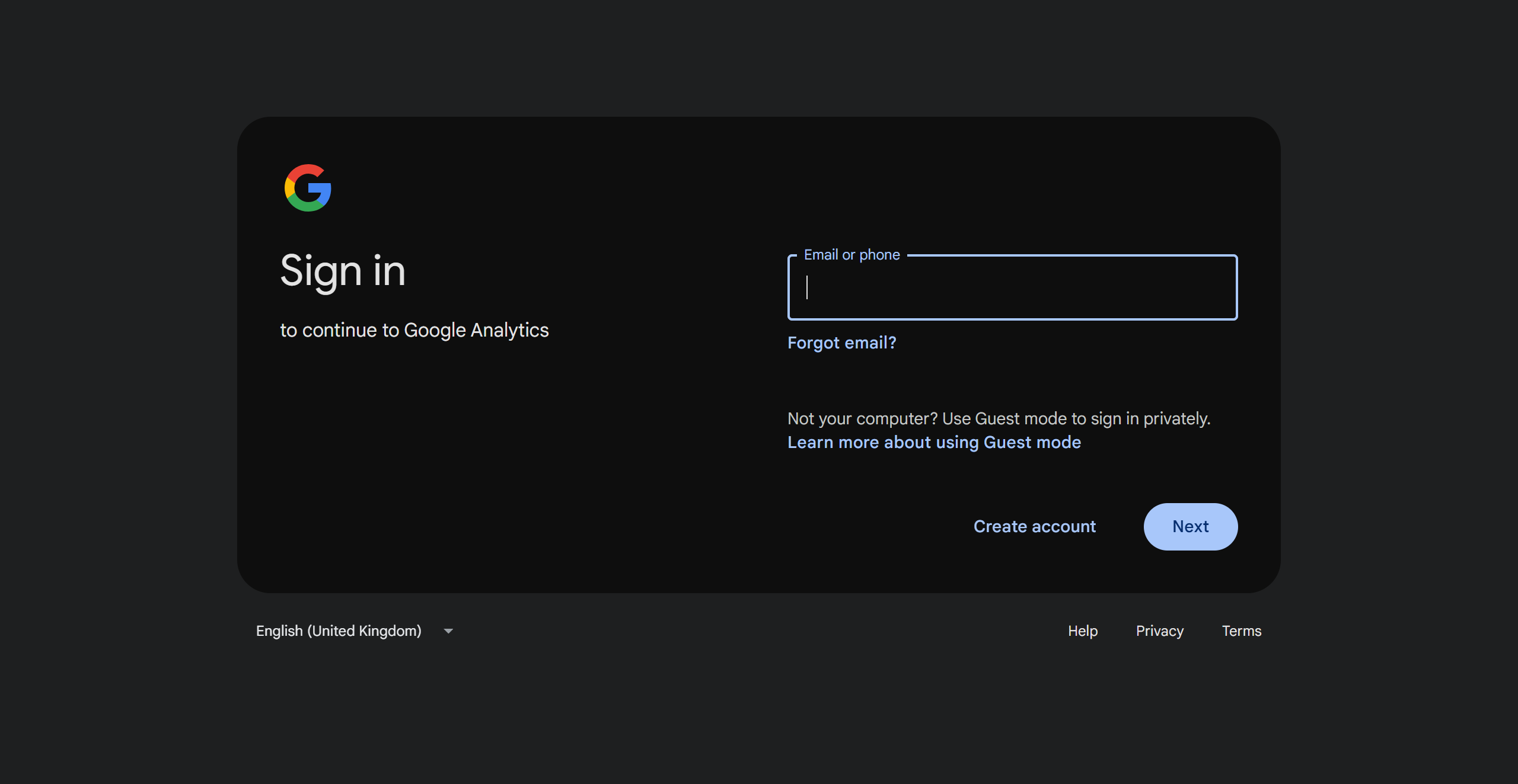
- Go to Google Analytics and sign in with the Google account that will own the data. Use a company account so the data stays with the business.
- In Admin, create an account and a property: property name, reporting time zone and currency.

- Choose the Web platform and add a data stream with your site URL. Keep Enhanced measurement on: it records scrolls, outbound clicks, site search and file downloads automatically.
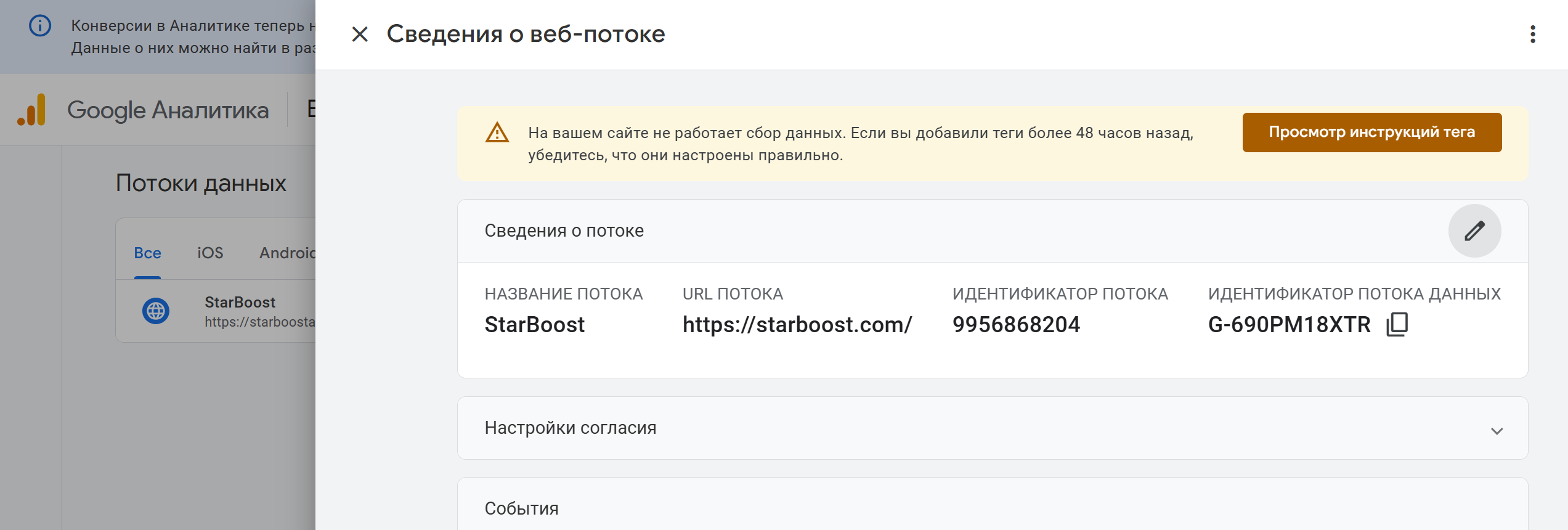
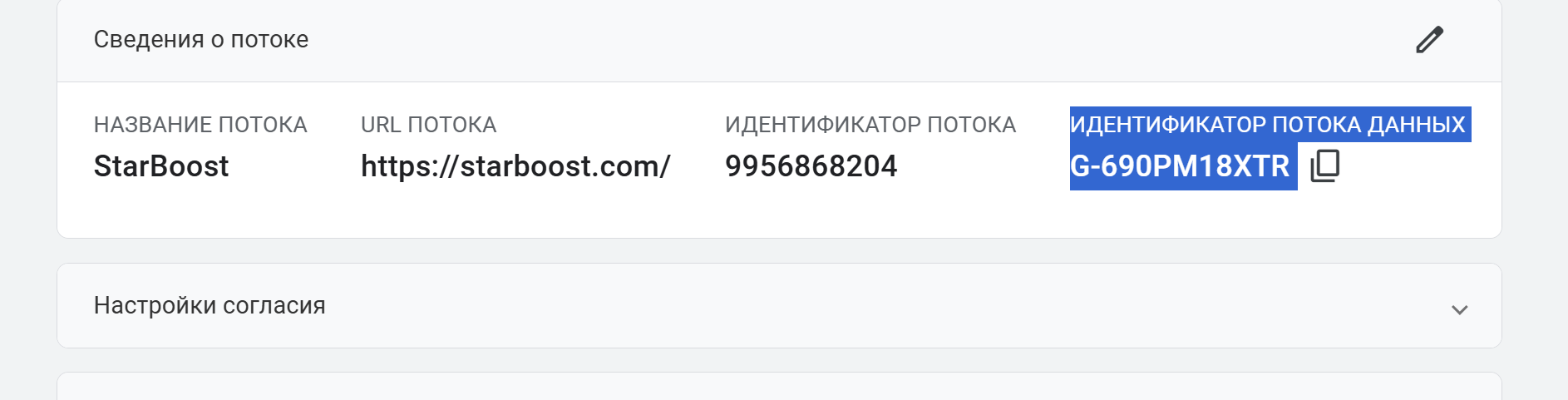
- Copy the Measurement ID in the format G-XXXXXXXXXX. You will need it in Tag Manager.

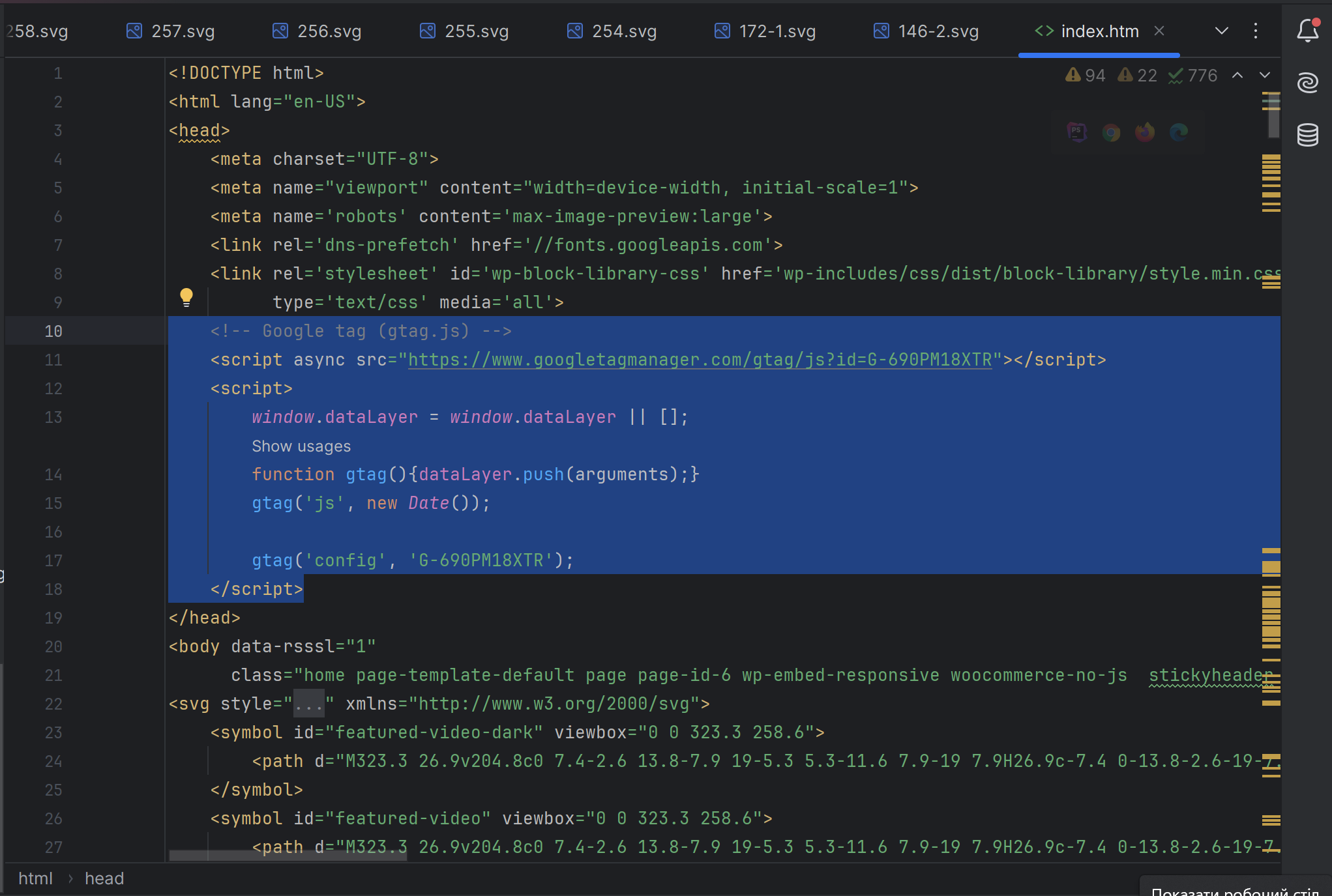
- GA4 also offers the Google tag code for direct installation in the site head. Skip it if you use Tag Manager, otherwise page views are counted twice.
Before you leave Admin, set data retention to 14 months (the default is 2 months) and mark the events that matter to the business as key events: form submission, phone click, purchase.
Step 2. Install GA4 through Google Tag Manager
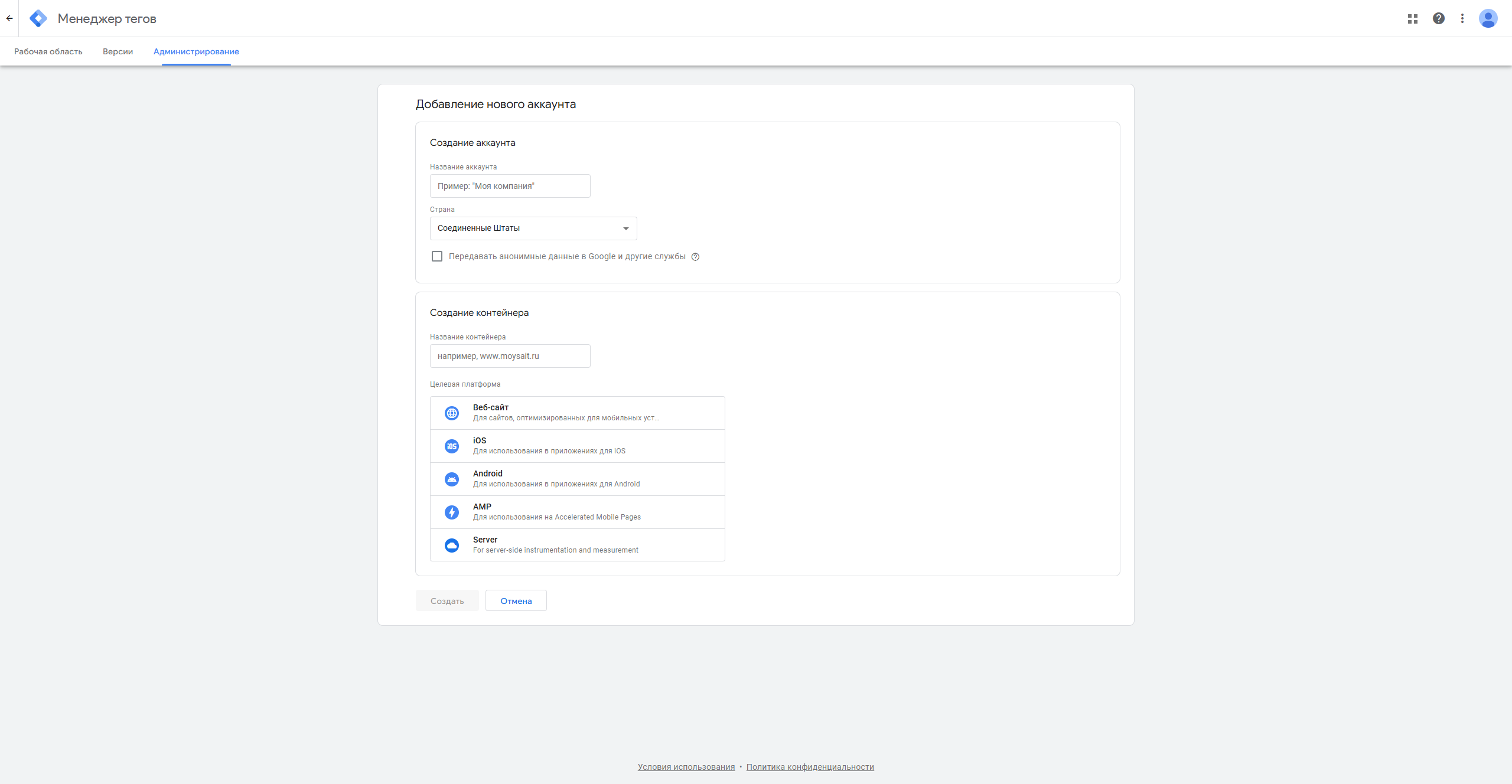
- Open Google Tag Manager and create an account.

- Create a container with the Web target platform.
- Paste the two GTM snippets into the site: the script as high as possible in
<head>, the noscript part right after the opening<body>tag. CMS plugins for WordPress or MODX can do this for you.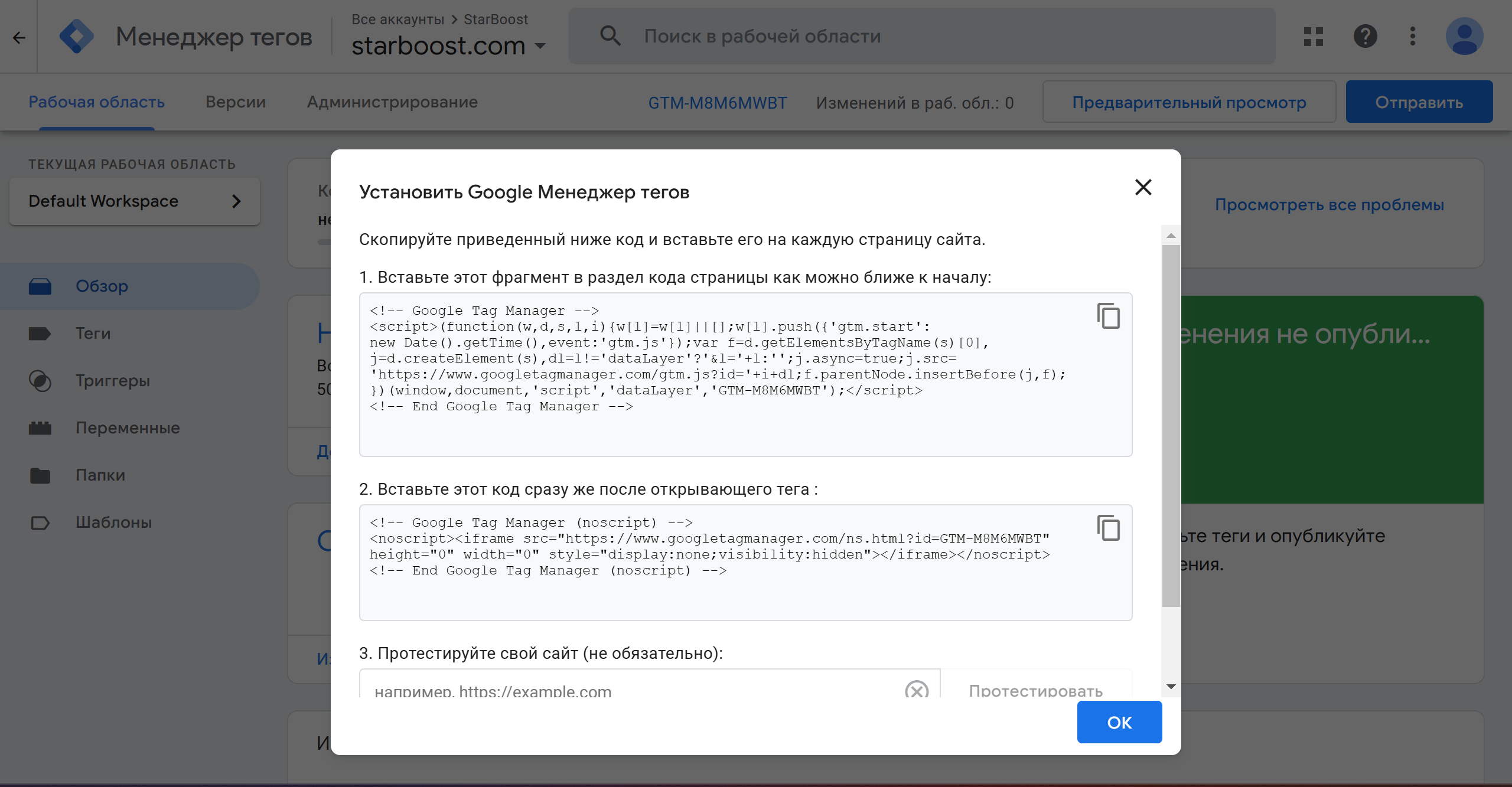
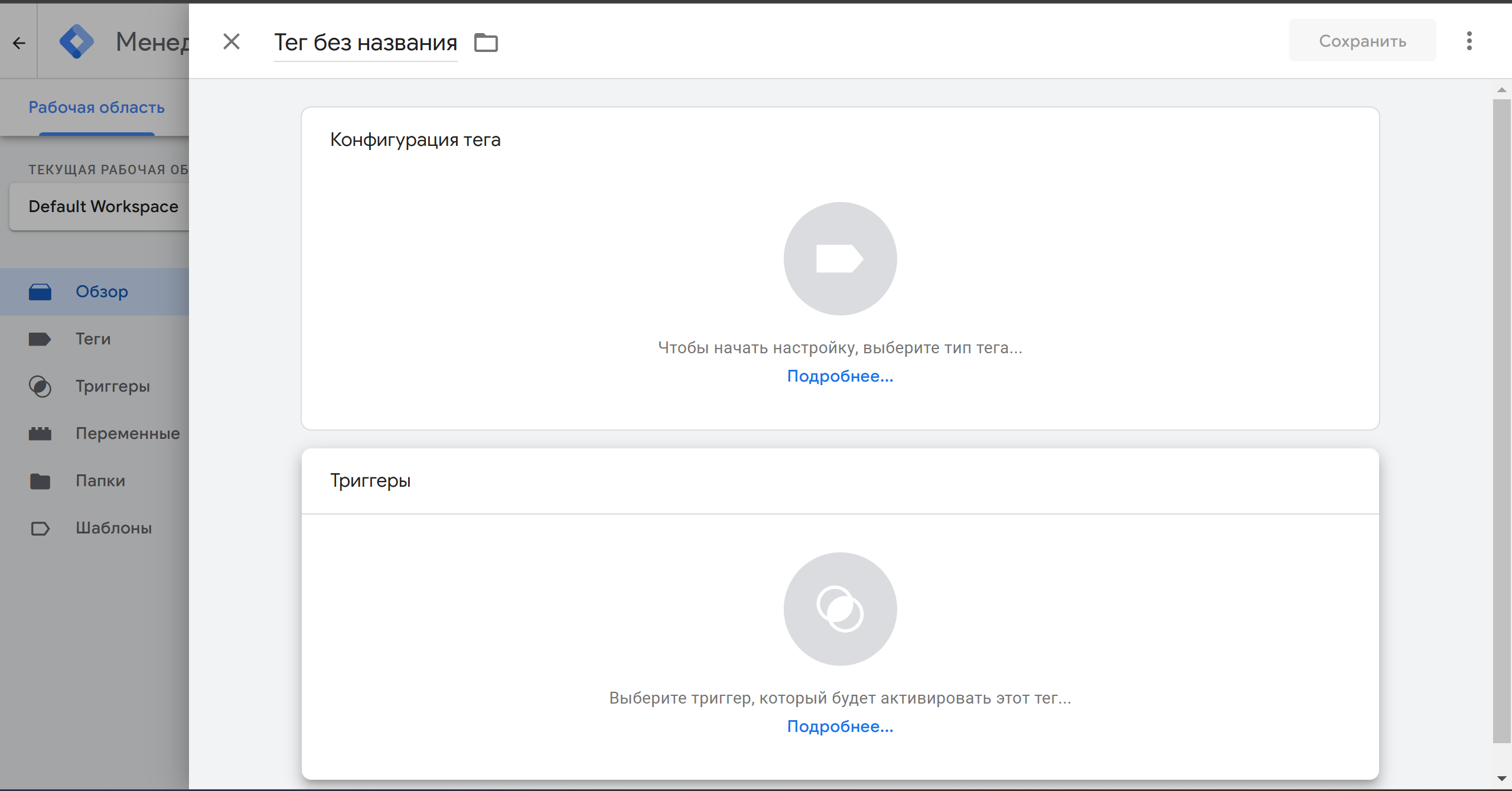
- Add a tag of type Google Tag (it replaced the old GA4 Configuration tag in 2023) and enter your Measurement ID.

- Set the trigger Initialization – All Pages so the tag fires on every page before other tags.
- For conversions, add Google Analytics: GA4 Event tags, for example
generate_leadon a successful form submission, then click Submit and Publish.
Step 3. Add and verify the site in Google Search Console
- Open Google Search Console and click Add property.
- Choose the property type:
- Domain covers all subdomains and both http and https. Verification is a TXT record in your DNS.
- URL prefix covers one exact address. Verification by HTML file, meta tag, Google Analytics or Google Tag Manager.
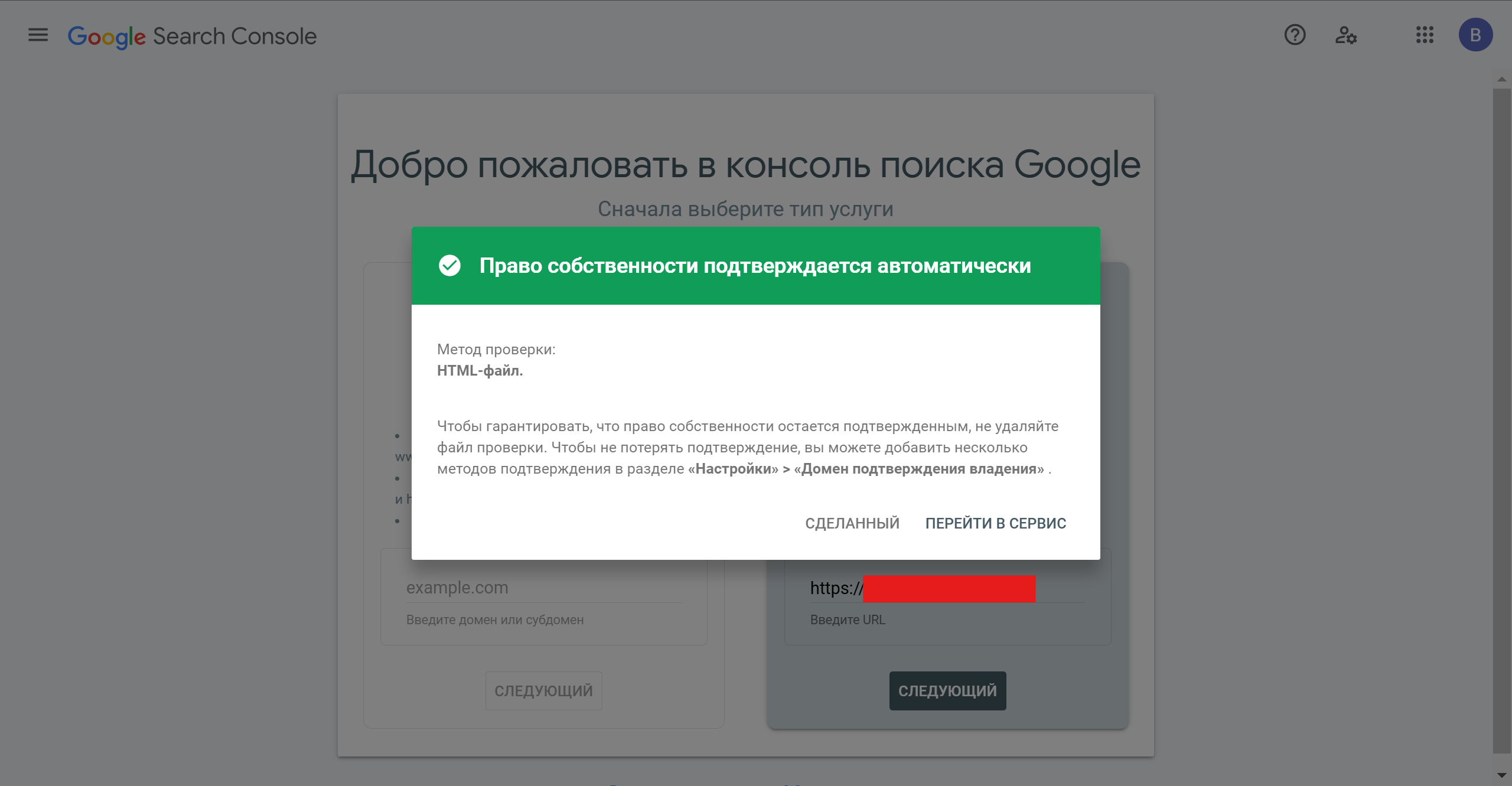
- If GTM is already on the site and you have Publish permission in the container, the Google Tag Manager method verifies the property in one click.
- Submit your XML sitemap in Sitemaps and check the Pages report for indexing errors.
Performance data appears within a few days. Search Console keeps up to 16 months of history, so it is worth adding the site as early as possible.
Step 4. Link Search Console to GA4
- In GA4 open Admin → Product links → Search Console links and click Link.
- Pick the Search Console property. You must be a verified owner there and have the Editor role in GA4.
- Select the web data stream. One stream can be linked to one Search Console property.
- In Reports → Library, publish the Search Console collection. Two reports appear: Queries and Google organic search traffic.
Step 5. Check that everything works
- GTM Preview mode (Tag Assistant) shows which tags fire on each page and on each click.
- GA4 Realtime and DebugView show your own visit and the events it generates.
- Submit a test form and make sure the
generate_leadevent reaches GA4 once. - After a few days, open the Search Console reports in GA4 and compare clicks with the Performance report in Search Console.
Consent mode for visitors from the EU
If the site has visitors from the EEA, the UK or Switzerland, a cookie banner has to pass their choice to Google tags. Google Consent Mode v2 does this with the ad_storage, analytics_storage, ad_user_data and ad_personalization signals. Without it, remarketing and some conversion features for these users do not work. Many certified consent platforms integrate with GTM through a template.
Common mistakes
- GA4 is installed twice, directly and through GTM: page views double and engagement metrics are inflated.
- The GA4 property belongs to a former contractor. Always create it in the company account and grant access to others.
- Only page views are tracked. Without key events, GA4 cannot show which channels bring leads and sales.
- The Search Console property covers only https://www., while part of the traffic lands on another version of the site. A Domain property solves this.
- Data retention is left at 2 months, and year-on-year comparisons become impossible.
When to get expert help
A basic setup fits into an hour. Tracking of forms, calls, messenger clicks, purchases and ad conversions across GA4, Google Ads and Meta takes more time and a test plan. Marketing MIX sets up analytics as part of an SEO audit and before launching Google Ads (PPC) campaigns, so every lead can be traced back to its source.
FAQ
How do I connect Google Analytics to Search Console?
In GA4 open Admin, then Product links, then Search Console links, click Link and pick your verified Search Console property and web stream. You need owner rights in Search Console and Editor rights in GA4.
Can I verify Search Console with Google Tag Manager?
Yes. If the GTM container snippet is installed on the site and you have Publish permission in that container, choose the Google Tag Manager method in the URL-prefix verification screen.
Should I install GA4 directly or through Tag Manager?
Use Tag Manager if you plan to track more than page views: form submissions, clicks on phone numbers and messengers, purchases. All tags then live in one place and can be changed without editing site code.
Why do I see no Search Console data in GA4?
The link works only for one web stream, and the Search Console report collection has to be published in the GA4 report library. Data also appears with a delay of a few days.
How long does Search Console keep data?
Search Console shows up to 16 months of performance data. GA4 keeps event-level data for 2 or 14 months, depending on the retention setting in Admin.
Do I need consent mode for GA4?
If you have visitors from the EEA, the UK or Switzerland, yes. Google requires consent signals (Consent Mode v2) for ads personalisation, remarketing and some conversion features for these users, and GDPR requires consent for analytics cookies anyway.
Tell us about your site and goals via the form below. We will send an analytics setup plan and an estimate.
Contact us
We will answer all your questions.
 DUNS Number: 68-606-2061
 NCAGE Number: A3G3J






 "INNOVA CONSULTING GROUP"


Comments
Write comment